

DIY & firmware
Sensors with ESPHome and ESP32
Build temperature, presence and energy sensors with ESP32 and ESPHome, without coding in C: components, your first project and Home Assistant integration.
A sensor that fits exactly where you need it. A button that triggers your favourite scene. A tiny screen showing the bedroom temperature. ESP32 + ESPHome lets you build these small projects and connect them to Home Assistant.
IoT means connected objects exchanging information. DIY is doing it yourself. Here, your board talks to the hub over the local network; you don't need a manufacturer's app for each project.
Two ways to start#
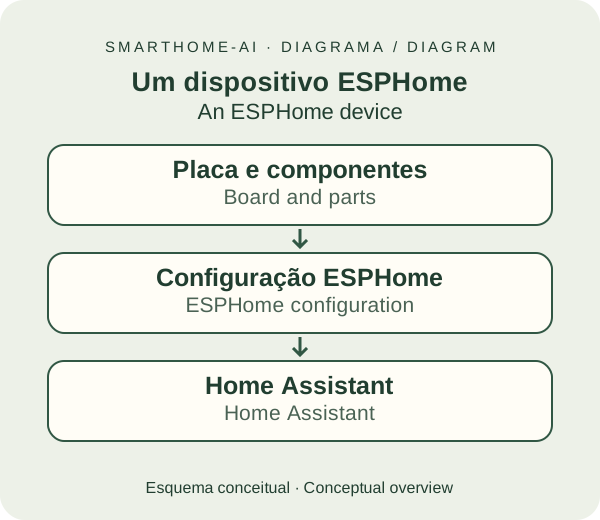
ESP32 development boards offer connections for sensors, buttons and screens. There are many variants: check the chip, the pinout, the memory and the components before following a recipe.
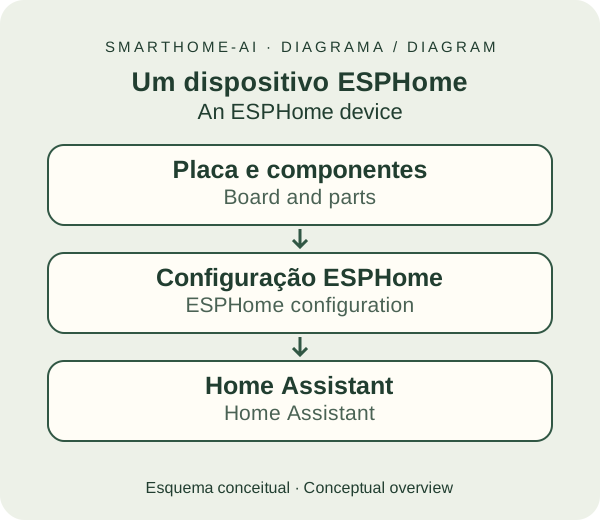
The ATOM-S3 includes a small screen and a button, useful for controls and information. Configuring the screen and its components is specific to the board. It should not be confused with the ATOM Echo, which has audio hardware and an official tutorial for using Assist.
ESPHome Device Builder: the dashboard for your projects#
ESPHome is an open-source project from the Open Home Foundation, backed by Nabu Casa. The Device Builder can be installed as an App on HAOS and organises your devices from the browser.
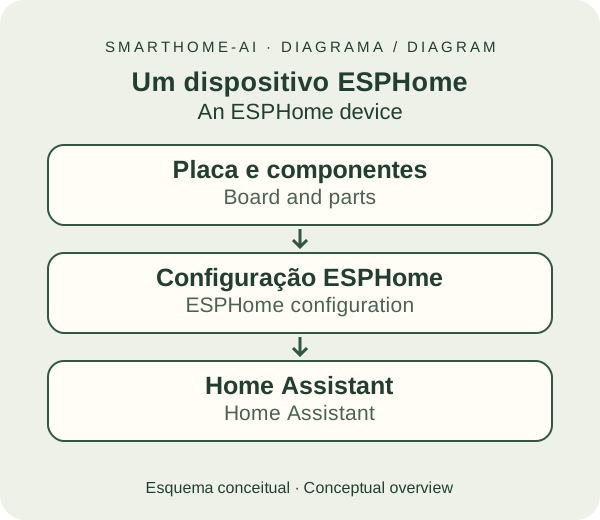
- In Settings → Apps, open the store and install ESPHome Device Builder.
- Start the App and open the web interface.
- Choose Create device and follow the new-configuration wizard.
- Confirm the board type and the Wi-Fi network.
- Use Install and follow the USB flashing option. In the browser, use Chrome or Edge on a computer, with a secure context and Web Serial support.
- Add the discovered device in Settings → Devices & services → ESPHome.
After the first install, and with the network working, many updates can be sent over Wi-Fi. The exact path depends on the board and the configuration.
Do I need to know how to code?#
You don't need to start by writing C++. ESPHome uses YAML, a file that describes the components and what they should do. The wizard builds the base; ready-made projects save a lot of work. Custom sensors and screens may still require editing that file.
An AI can be a good tutor: explaining each part, adapting an example and helping you interpret errors. A useful request is:
"I have this ESP32 board and this sensor. Use the current ESPHome documentation, explain the connections and propose a minimal configuration. Don't invent pins; tell me what I need to confirm."
State the exact model and don't include real passwords in the request. Compare the answer with the documentation, use Validate and test one component at a time. A configuration that compiles still has to match the physical wiring.
Voice with ESP32#
With a compatible microphone, speaker and configuration, an ESP32 device can act as a voice point for Assist. The official ATOM Echo tutorial offers browser-based installation.

The board captures and plays back audio; recognition and the response can use local processing on the system or cloud services, depending on the configuration. You don't have to start with voice: a scene button is usually a simpler project.
Your first project#
Start with a temperature sensor or a button powered over USB, at low voltage. Once it shows up in Home Assistant, create the automation from the visual editor. Projects wired to mains power require suitable components and installation by a qualified professional.
Ready-made examples to copy#
I've put together a gallery of complete ESPHome configurations — a Bluetooth Proxy, an IR receiver, Thread devices and displays — ready to copy and adapt to your Home Assistant: the ESPHome examples gallery.

Sources: getting started with ESPHome, install ESPHome, ESP32-DevKitC, ATOM-S3 and Nabu Casa and the Open Home Foundation.

Read next
ESPHome examples
Complete, ready-to-copy ESPHome configurations — a Bluetooth Proxy, an IR receiver, Thread devices and displays — for your Home Assistant.
Read the guide DIY & firmwarein PortugueseSensores com ESPHome e ESP32
Monte sensores de temperatura, presença e energia com ESP32 e ESPHome, sem programar em C: componentes, primeiro projeto e integração com o HA.
Read the guide DIY & firmwarein PortugueseExemplos prontos de ESPHome
Configurações completas de ESPHome prontas para copiar — Bluetooth Proxy, receptor de IR, dispositivos Thread e telas — para o seu Home Assistant.
Read the guide