

Guided installation
Home Assistant OS: choose your installation
Green, Raspberry Pi 5 or mini PC: which to choose, what to prepare, what happens on first access, what to do when the address does not open, and the next steps.
Home Assistant OS (HAOS) is the system that looks after the hub, its updates and the Apps. Pick only the guide for your hardware: each one takes you from preparation to the first working Zigbee sensor. The three illustrated guides are in Portuguese; the screenshots are from the English interface.
Which hardware are you installing on?#
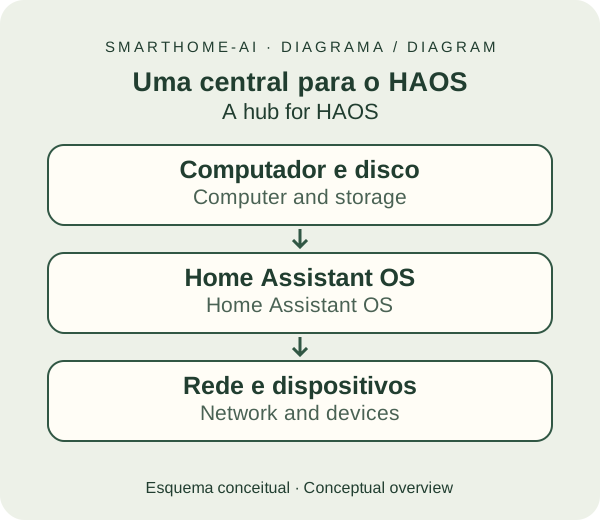 01 / Ready to plug in
Home Assistant Green
Connect network and power. Create your account and add the ZBT-2 through the screens.Step-by-step guide (PT) →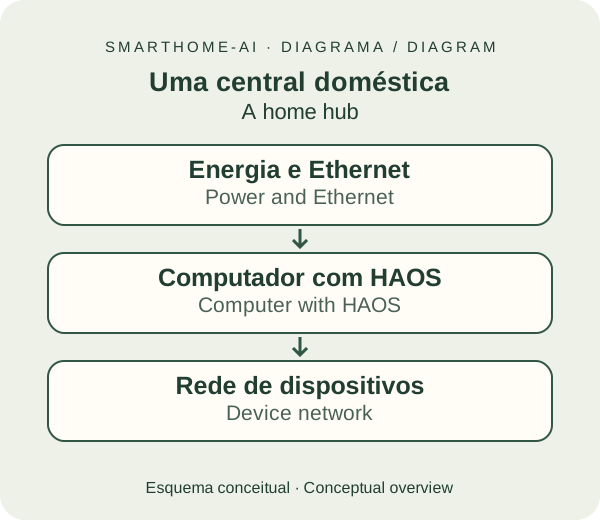 02 / Build your hub
Raspberry Pi 5 + NVMe
Choose board, case and SSD. Prepare the NVMe on a Mac or PC and install HAOS.Step-by-step guide (PT) →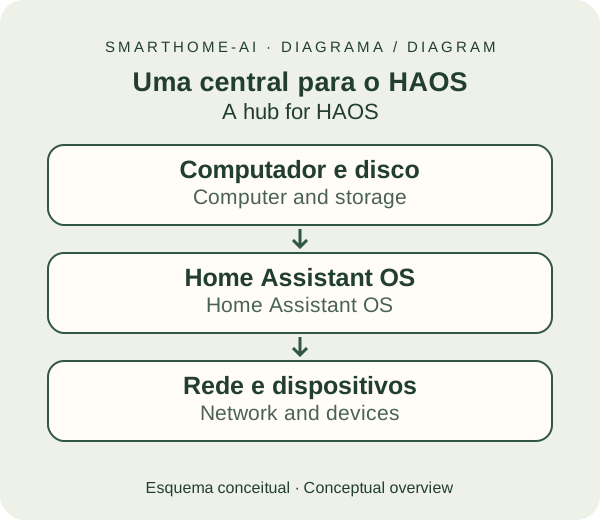 03 / Intel or AMD
x86-64 mini PC
Prepare the USB stick and write HAOS to the internal SSD, with a visual walkthrough.Step-by-step guide (PT) →Not bought yet? Compare the hardware, photos and prices (in Portuguese).
How to choose between the three#
| Home Assistant Green | Raspberry Pi 5 + NVMe | x86-64 mini PC | |
|---|---|---|---|
| For whom | Wants to plug in and use, without writing anything. | Likes building and wants a compact, cheaper setup. | Wants headroom for cameras, local AI, virtual machines and many Apps. |
| Preparation | None: HAOS comes pre-installed. | Write HAOS to the NVMe SSD with Raspberry Pi Imager on a computer. | Create an installer USB stick and write HAOS to the internal SSD. |
| Performance | Enough for Zigbee, automations and a few Apps. | Good; the NVMe SSD makes a real difference over a microSD card. | The highest of the three; room for Frigate, Scrypted and AI models. |
| Power and noise | Very low, fanless. | Low; the case fan can be audible. | Low to medium; most have a fan. |
| Storage | 32 GB internal eMMC. | The NVMe SSD you choose. | Internal SSD, usually 256 GB or more. |
| Backup and replacement | HAOS backups; closed hardware. | Easy to swap SSD or board. | Easy to swap SSD and memory. |
When in doubt, the Green is the safest choice for anyone who only wants lights, sensors and automations; the mini PC is the choice for those who already know cameras with image analysis are coming. In my home the hub is a mini PC with a Ryzen 7 processor. I also use cameras and an ESPHome display in addition to the lights.
Before you start, have ready#
- A network cable to the router. The hub should be on Ethernet.
- A stable power outlet. If power cuts are frequent, a small UPS prevents storage corruption.
- Another computer on the same network, with an up-to-date browser, to write the system (Pi and mini PC) and for the first access.
- For the Pi and the mini PC: a USB stick of 8 GB or more, which will be erased, and the target SSD, which will also be erased.
- The ZBT-2 and a short USB extension cable, for after the installation.
What the three paths have in common#
- The hub stays connected to power and to the network over Ethernet.
- You configure it from the browser of another computer on the same network, at http://homeassistant.local:8123.
- You create your account and get to know the dashboard.
- You connect the ZBT-2 to the hub and set up ZHA through the screens.
- You add a light or a sensor and make the first backup.
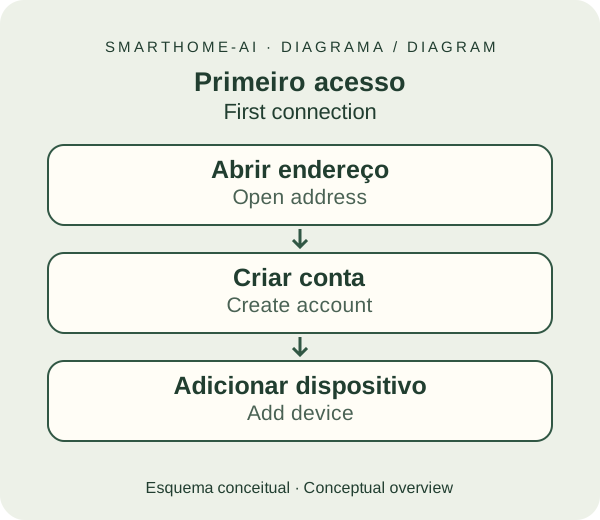
The Green comes ready. On the Pi and the mini PC, writing the image erases the chosen media: double-check the target and save your files first. For this path you do not need a terminal, Proxmox or virtual machines.
What happens on first access#
- On the first boot, HAOS downloads and prepares the Home Assistant components. The "Preparing Home Assistant" screen can take up to 20 minutes, according to the official documentation. Do not switch the hub off during that time.
- The welcome screen follows. Create the owner user (name, username and password). Keep the password safe: there is no email recovery.
- Enter the home name, location, time zone and units. The location defines the sunset time used by the first automation, so place the pin accurately on the map.
- Decide whether to share anonymous usage data with the project. It is optional.
- Home Assistant shows the devices it has already discovered on the network, such as TVs, printers or a Philips Hue bridge. You can set them up now or later.
If the address does not open#
homeassistant.localdoes not resolve. Some routers and older Windows versions do not understand that kind of name. Open the router's admin page, find the device calledhomeassistantin the connected-devices list and use its IP address, for examplehttp://192.168.1.50:8123.- The page loads forever. Wait out the initial 20 minutes. Beyond that, plug a monitor into the hub (Pi and mini PC) and check for the
ha >prompt; if it is there, the system is up and the problem is the network. - Certificate error or "connection not secure". First access is over
http://, without thes. Some browsers forcehttps://; type the full address. - No network after writing the image on the mini PC. Check in the BIOS that the computer boots from the internal SSD, not the USB stick, and that the cable is in the right port.
Right after installing#
- Update. Settings → System → Updates. HAOS, the Supervisor and Core update separately; apply whatever is pending.
- Reserve the hub's IP address on the router (DHCP reservation). It never changes, and the phone app and integrations keep finding the hub.
- Make the first backup under Settings → System → Backups and keep the encryption key. Enable weekly automatic backups with a copy outside the hub.
- Install the companion app on your phone and sign in with the same user.
- Connect the ZBT-2 through the USB extension and follow the ZBT-2 with ZHA guide.
What HAOS handles for you#
Home Assistant OS includes the Supervisor, which manages updates, backups and the App store (Mosquitto, ESPHome, Matter Server, Studio Code Server and others). Other installation methods, such as Container or a virtual machine, exist and are described in Further learning (in Portuguese), but they hand that maintenance over to you. For a first home, HAOS is the path with the least friction.
After installing, understand the Zigbee network and create your first automation (in Portuguese).
Sources: official installation, onboarding and Home Assistant Green.